<aside>
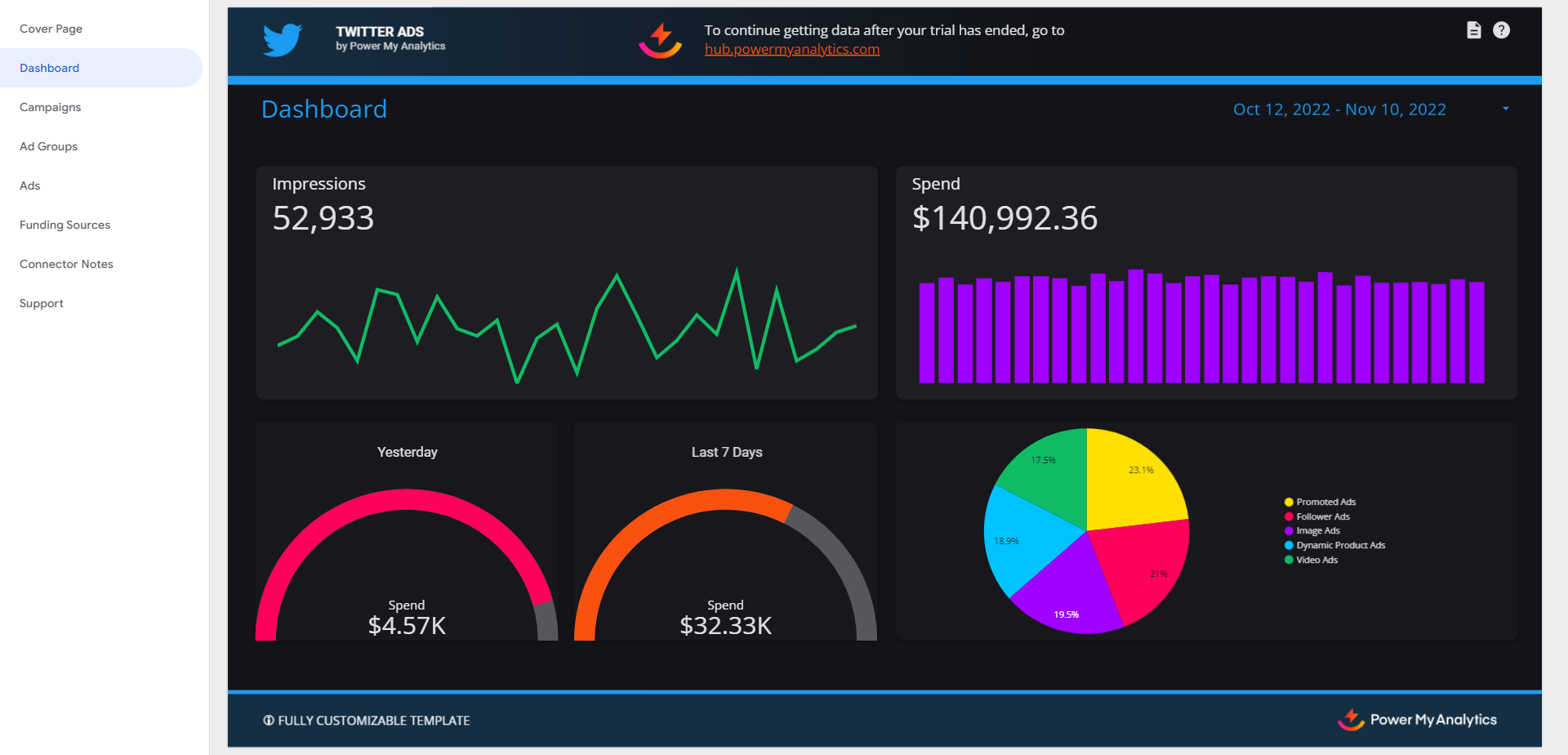
X Ads (formerly Twitter Ads) is a powerful advertising platform that allows marketers to reach their target audience on one of the world's most popular social media networks. This guide will walk you through the process of connecting your X Ads account to Power My Analytics, creating reports, and understanding key metrics and considerations.
</aside>
To grant Ad Manager access to a user:
Go to X Ads and open the menu under your name.
Click Edit access to account.
Click the Add access button.
Enter the user's name and select Ad manager access.
Click Save changes.
Follow these steps to create a Looker Studio report using your X Ads data: