<aside>
This guide will walk you through the process of setting up and using Shopify as a data source in Power My Analytics. By connecting your Shopify store, you'll be able to automate data collection, centralize your e-commerce metrics, and easily create customized reports. This guide covers prerequisites, adding Shopify as a data source, creating a Looker Studio report, key reports and fields, and important considerations.
</aside>
Prerequisites
Before you begin, ensure you have:
- Store owner access or staff access with all permissions to set up the connection
Grant Permissions to a User in Shopify
-
Add a staff member: In your Shopify settings, go to Users and permissions. Under Add staff, enter the first name, last name, and email address of the staff member.
-
Make sure staff members who need access are given all permissions by clicking Select all.
Adding Shopify as a Data Source
- Navigate to your PMA Hub and select Sources from the menu.
- Click + Add new source and choose Shopify from the gallery.
- Install the Power My Analytics app from the Shopify app store.
For more information on adding Shopify as a data source, please see How to Connect to Shopify.
Creating a Looker Studio Report
Follow these steps to create a Looker Studio report using your Shopify data:
- After adding Shopify as a data source in the PMA hub, navigate to Reports > Looker Studio
- Select Shopify under Create Looker Studio Report (this will open the official Looker Studio application in a new window)
- Google Looker Studio Configuration:
- Step 1:
- Name your data source (e.g., "Shopify - Organization Name")
- Choose your Power My Analytics hub from the dropdown
- Optional: Leave "Use report template for new reports" checked to use the PMA demo template
- Click Next
- Step 2:
- User Account: Select your Shopify account (for real data) or "Sample Account" (for sample data)
- Click Next
- Step 3:
- Choose "Clients" for reports
- Optional: Allow "Clients" modification in reports
- Click Connect (top right) to complete the data source configuration
- Step 4:
- Click Create Report (top right)
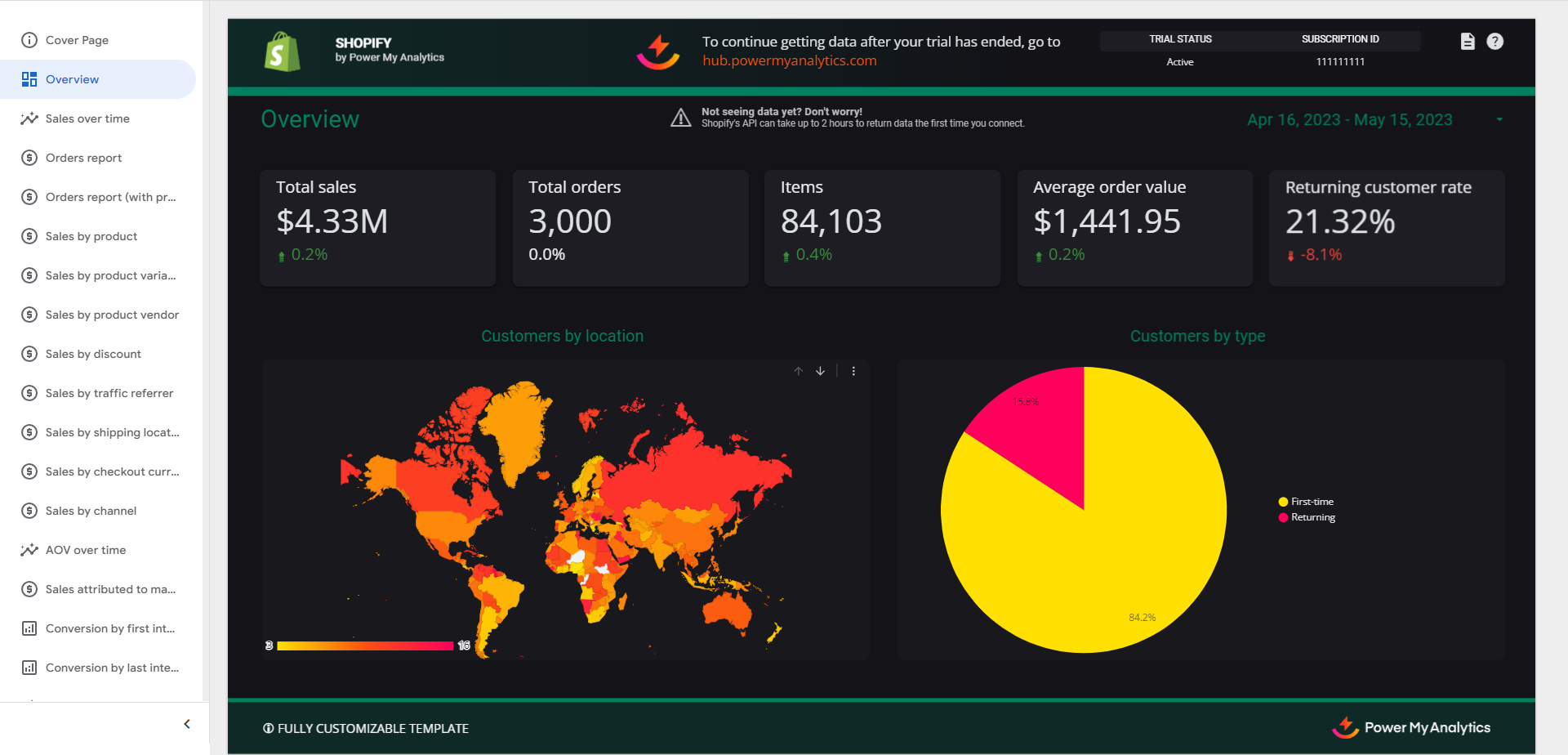
For a quick start, use our pre-built Shopify demo template.
Key Reports and Fields