Open your Looker Studio report and click on the Edit button to enter edit mode.
Click on the Resource menu at the top of the page and select Manage added data sources.
Locate the data source that needs to be reconnected and click Edit next to the source.
On the top left side of the page, click Edit Connection.
Ensure you choose the correct Hub and Account from the available options. Then click Reconnect.
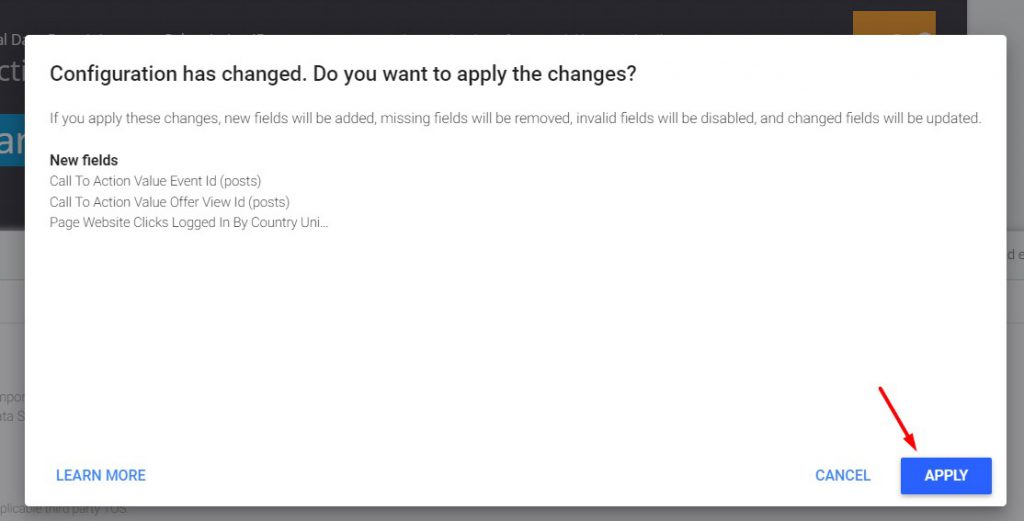
Click Done to apply the updates and complete the reconnection process.
