<aside>
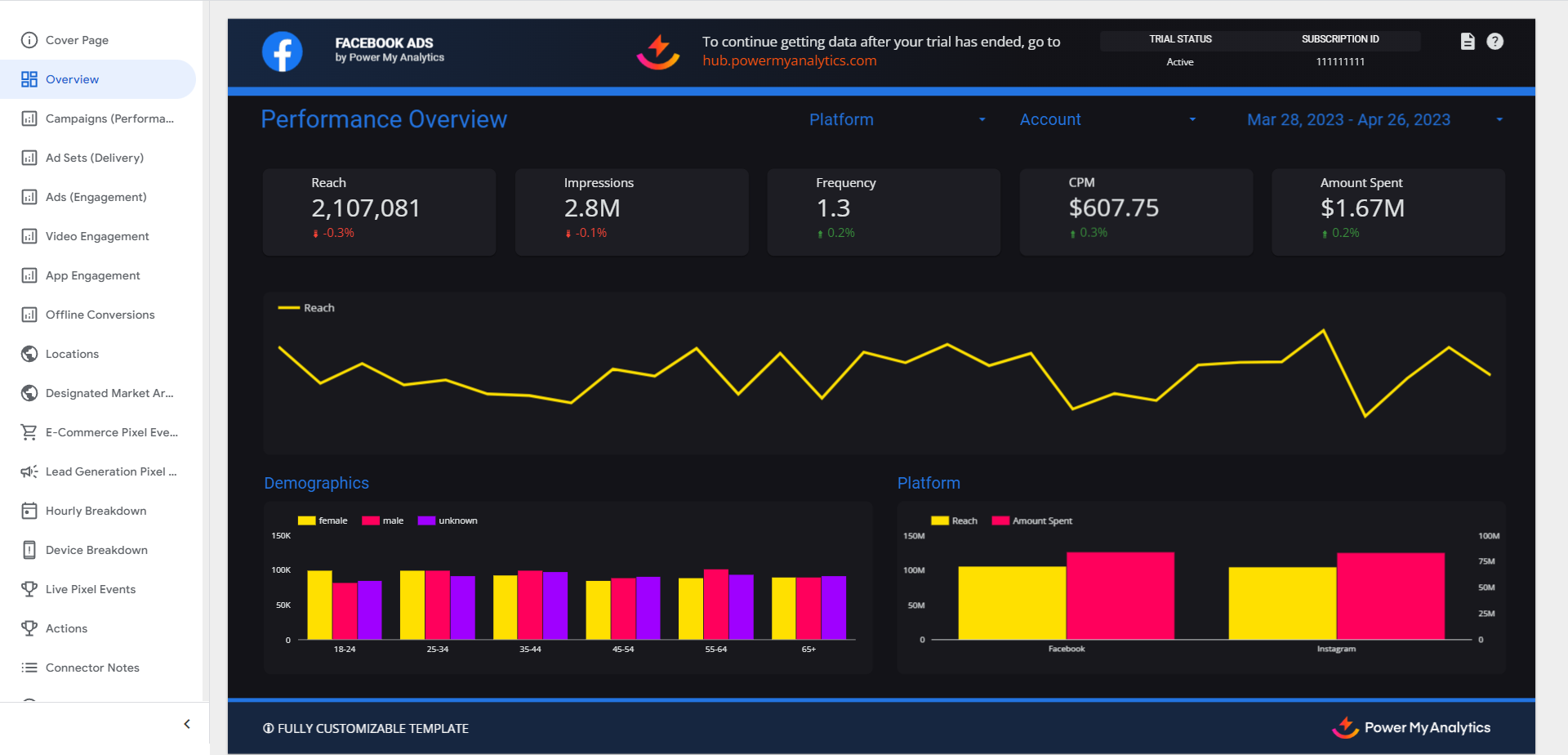
Facebook Ads is a powerful advertising platform that allows businesses to reach their target audience on Facebook, Instagram, and across the web. This guide will walk you through how to connect your Facebook Ads account to Power My Analytics, create reports in Looker Studio, and understand key metrics and considerations when working with Facebook Ads data.
</aside>
Prerequisites
Before connecting Facebook Ads to Power My Analytics, ensure you have:
Adding Facebook Ads as a Data Source
To add Facebook Ads as a data source in Power My Analytics:
- To add the correct Facebook account, you must be logged in to that account in your browser. Open an Incognito window in your browser to log into the correct Facebook account before connecting with Power My Analytics.
- Navigate to your Hub and select Sources from the menu.
- Click + Add new source and choose Facebook Ads from the gallery.
- Sign in to your Facebook account to authenticate.
- Grant Facebook business access: Select "Opt in to all current and future Businesses". Click Continue.
- Grant Facebook page access: Choose "Opt in to all current and future Pages". Click Continue.
- Grant Instagram account access: Select "Opt in to all current and future Instagram accounts". Click Continue.
- Finalize permissions: Click Save, then click Got it.
<aside>
Power My Analytics' former Instagram Ads data connector has now been merged into the Facebook Ads data connector, and Instagram advertising data is provided through the Facebook Ads connector.
</aside>
Creating a Looker Studio Report
To create a Looker Studio report using your Facebook Ads data:
- After adding Facebook Ads as a data source in the PMA hub, navigate to Reports > Looker Studio
- Select Facebook Ads under Create Looker Studio Report (opens official Looker Studio application in new window)